Showing posts with label Digital Resources. Show all posts

Wednesday, November 14, 2012

Avatar: Voki Part II

Summary
So much of incorporating technology in the classroom is the use of visual tools. However, with some avatars, such as the Voki avatar, instruction with technology becomes auditory. Avatars are virtual objects that represent the user. In an online, virtual environment, an avatar portrays its creator to other users who often stand behind their own unique avatars. In some instances users can even control their avatars to interact with one another. Of course, not everything you see online is true which is especially the case when talking about people’s portrayals of themselves. A blond haired, blue eyed, female may create an avatar that is a brunette, brown eyed, male. However, this is not always a case of deception. There is beauty to this. For instance, someone is shy in real-life may be able to present a more outgoing version of themselves in a virtual environment, potentially enabling them to experience new things they would not have otherwise or in ways that they would not have otherwise.
 
How I Would Use It
            Many students, particularly elementary students and ELL students, are assisted in their writing when they can hear it read aloud to them. They are likely to make mistakes that they will not be able or likely to find by rereading their work for themselves due to weaknesses in their reading ability. These students are generally better at identifying mistakes in spoken language, therefore, when a teacher reads their work, they are better able to catch a mistake, find it in their work, and make a correction. Students may improve their writing and their editing skills when they are given the opportunity to plug in their writing into a Voki avatar word box and listen to their Voki “read.”

What I Did
To use Voki’s basic features, all I had to do was access their website (for more advanced features, users must register and pay for Voki Classroom). By clicking on the, “create,” tab at the top of the page, I was able to create a randomized Voki or to choose a character based on my preferences. There are several options to chose from that will ensure that your Voki is unique to you. By clicking on the head icon I was able to customize my character. From there, I  chose, “classic,” for a human-looking face although I could have chosen from categories including toons, anime, animals, politics, etc. Although every avatar can be experimented with, some are only available for saving through Voki Classroom. Next, I changed my avatar’s hair, mouth, and clothes. I was even able to change its hair color, eye color, skin color, lip color, make-up, nose width, height, and weight.


When I finished my character, I got to chose from an assortment of backgrounds and player colors before adding my text. I typed up a paragraph to introduce myself in Word and pasted it into the text box. The player suggested that I might have to spell some words phonetically to ensure that my avatar said pronounced everything correctly. I had to change my name, for example, from Lorri to Lo-rie. Finally, I was able to change the voice of my avatar. This might have been my favorite thing to play around with as I got to listen to my introduction speech in a British, Australian, southern accent, and more.
I posted my avatar in an earlier blog post. Click here to see it.  

What I Learned
I don’t have very much knowledge about avatars. But, after reading this article, I better understand that avatars can come in my different shapes and sizes, can be used for multiple purpose, and can be created through multiple programs. 

Reflections Standards
Using advatars in the classroom, teachers meet standard 4, components, “c,” and, “d,” of the  ISTE-NETS-T’s standards. These components require student communication and collaboration through digital communication formats in order to gain global and cultural awareness, using proper internet etiquette.

Word Cloud: Wordle

Summary
            Getting the gist of a selection of text has never been easier. With Wordle users can plug in a body of text or a website URL to create a cloud of associated words. What makes word clouds effective is the way in which individual words are displayed. Instead of having a smattering of words that cannot easily be differentiated and read, Wordle displays words according to how often they occur in text. Words that were used the most appear largest and words that were used least appear smallest. Some words may appear to be the same size but if a large body of text is used, it is likely that words will appear in a large array of font sizes. Words are randomly placed but some adjustments can be made for style. For instance, users can choose to have words arranged horizontally or vertically, arranged in a rounded or straight edged cloud, in a particular font, or in certain colors. The background color on which the words are displayed can also be adjusted. Therefore, Wordle word clouds can be used for both informational and artistic purposes.

What I Learned
            I have used Wordle and seen Wordle used in the past. However, as I investigated it once more, I learned a new trick that I had not known previously. Once a word cloud is created, individual words can be removed. Often, when pasting in a large body of text, filler words will be used throughout the word cloud which can distract from the meaning of the word cloud overall.

How I Would Use It
            In the elementary school, Wordle could be used within the first days of school to create a classroom mission statement, list of rules, or classroom expectations poster by having each student make a list of student, teacher, and class expectations and/or goals. This could be done anonymously. The teacher would have to collect the suggestions and place them into the Wordle creator. Then, the students could see what ideas were shared among the class. The teacher and students could work together to incorporate the five words that appear the largest and most often (Wordle does not differentiate words by capitalization or word endings; you may see both, “student,” and, “Students,” in the same cloud.) into their class mission statement or document. Doing so would allow students to take more responsibility and ownership in the classroom. In addition, the teacher could work with the students to remove the filler words from the Word Cloud in order to use the product as a wall hanging in the classroom.
 
 
What I Did
            In my most recent investigation of the Wordle tool, I compared the word clouds of two documents. Fist, I copy and pasted the NETS-T standards from 2000 into the word cloud creator. I played with my creation so that the words would be horizontal for easy reading and that the colors would match the original document. I also rearranged the layout of the words until I found one that was aesthetically pleasing to me. I adjusted the design features and layout by clicking on the drop down lists available at the top of my word cloud and choosing options like, “mostly horizontal,” “straighter edges,” “custom palette,” “lots of variation,” and “re-layout with current settings.” There are so many options! Every time I found a style I liked, I would make a small adjustment and found that I liked that look even better!


            Next, I copy and pasted the NETS-T standards from 2008. I made very little adjustments to the style of the word cloud as the random generator chose I style I already liked. The point of making two word clouds from document that had been adjusted over time was so that I could compare and contrast them to determine how ideas have changed. Since these documents deal with the technology standards in education, I was bound to see differences. Not only has technology (tools and use) changed dramatically over that eight-year span, but the field of education has changed.

 
            By comparing the word clouds, I noticed two things. There was one word stood out above the rest in each cloud however, the word was different for each. The 2000 cloud emphasized, “technology,” while the 2008 cloud emphasized, “learning.” In addition, there was a greater range in text size for the 200 cloud; some words were very large and many were very small. In contrast, there was less of a range in text size for the 2008 cloud, almost all of the words were of a readable size with few being very large. These things suggest to me that the NETS-T standards have changed from emphasizing teaching about technology through limited means and themes to emphasizing teaching with technology in a multitude of ways.

Standards Reflection
            Using Wordle in the classroom best associates with standard 1 and its components within the ISTE-NETS-T’s standards. Standard 1 requires teachers to create incorporate technology that will facilitate and inspire students in ways that will enhance student learning, creativity and innovation. Wordle, allowing the teacher and/or students to present information in a unique, fun, and engaging ways, enables students to think about information in new ways that may advance critical thinking, creative thinking, and innovative thinking.

Sunday, November 11, 2012

Monday, October 15, 2012

Rubric: Rubistar

Summary
            A rubric is a document that students receive before beginning a project that outlines what quality work will earn them the grade they are striving for. Rubrics are created in a chart format with anywhere from one to five columns and rows, generally. Columns are labeled with points or quality descriptors (excellent, acceptable, needs improvement, unsatisfactory, etc.) from lowest to highest or vice versa. Rows are labeled with the product characteristics the teacher will be looking for and grading on (organization, spelling, required elements, design, etc.). The grid is filled in with specific product descriptions that correspond with one quality descriptor and one product characteristic each. Students should be able to read the rubric to determine what work needs to be done to receive the mark. After a project is completed, the teacher highlights the product descriptions that match the level of work met by the student; this serves as feedback, giving the student an idea of their strengths and what they could do better next time.
            Rubrics do not need to be fancy, a title, a spot for the student’s name, and a small grid is all that is needed. There is a “fancy” website however, that allows teachers to choose a rubric type, based upon the type of assignment, create a rubric by simply filling in a grid, and sharing or saving the rubric. The website is called Rubistar and it makes it possible for teachers to create and store rubrics in minutes simply by registering. Once a rubric has been created, it can be downloaded as an Excel document, saved as an offline browser document, or printed.


What I Did
            I created a rubric for a fifth grade, end of unit brochure using Rubistar. I created my rubric for a specific project, but another teacher may find that the product descriptions I used are nondescript enough to be used for various other projects. Rubistar gives suggestions for product characteristics to look for in a project which gave me inspiration for my choices. I chose my quality descriptors based on an elementary grading system I am familiar with (O=Excellent, G=Good, S=Satisfactory, N=Needs Improvement). As the project would be an end of unit assessment, I decided to replace, “Needs Improvement” with “Unacceptable” as would expect my students to have the very basic tools necessary to meet expectations that would earn them a mark of “Satisfactory.” With Rubistar, I was given more grid boxes than I needed. I left them black and they were not included in my final product. Once I was finished, I downloaded my rubric, then uploaded it Google Drive so I could share it with you and embed it into my Google Site.


How I Would Use It
            I like to involve students in making their own decisions within the classroom when reasonable. I believe that including students in decision making regarding major projects and grades gives students added responsibility and motivates them set and strive to achieve educational goals. By creating rubrics with students, they are allowed to participate in this decision making role. Rubistar could be used with a projector or SmartBoard and would be a great resource to use in the classroom that will help guide student and teacher to create effective rubrics that all can agree upon and understand.


What I Learned
I am by no means an expert at creating rubrics. I am still in the learning process when it comes to developing assessment materials. I have taken courses in the past in which the Rubistar website was suggested for rubric creation. However, this is the first time that I have developed a rubric on my own and the first time I have used this resource. I have not been in a position where I needed to create my own rubric yet, as teachers often share rubrics online although, I do imagine that this resource will be a valuable resource in my student teaching placement and as a future teacher.

 
Standards Reflection
            Incorporating Rubistar in the classroom in the ways I’ve described, meets at least two components of the ISTE-NETS-T’s standards. Standard three “a” requires teachers to synthesize prior knowledge with knowledge (learning) of new technologies to demonstrate ability to use technological applications successfully. Every teacher should know how to create a rubric using paper and pencil. Some teachers will also know how to create rubrics in Excel or Word. Teachers who apply such knowledge to an unfamiliar, digital resource like Rubistar, meet this standard. Also, standard two “b” encourages teachers to bring technology into the classroom in ways that will motivate students to set their own educational goals and assess their progress. Students are able to accomplish both of these when they are provided with a rubric and/or opportunities to collaborate on the rubric creation process therefore, teachers who use Rubistar with their students met this standard as well.

Saturday, October 13, 2012

Self Grading Form: Google Forms

Summary
            Since Google Form results are collected and stored in a Google Spreadsheet, answers can easily be converted to quantitative data and formulas can be applied to automatically grade answers and calculate student averages.

What I Did
            I created a brand new Google Form with quiz questions. For the questions, I went to the Virginia Department of Education’s website to access previous subject tests for Virginia’s Standards of Learning. I collected science questions based on standard 5.7 and presented them in the quiz as they appeared in the test, as multiple choice questions. After several people responded to the quiz, I accessed the spreadsheet from Google Drive. Across from the row of questions, I listed the correct answers. In the columns of answers, I wanted numerical data that would identify whether each student answered the question currently (received a score of 100 respectively) or incorrectly (received a score of zero respectively). At the end of each row, I wanted to calculate the average score earned by each student. Special formulas are used to obtain these scores.
For individual questions, you need to use something that looks like “=if(B3=$J$1,100,0).” This specific formula is used, for example, when the first student answer is in B3 and the corresponding, correct answer is in J1. This formula can be dragged down the column to automatically grade all student answers. The formula for obtaining the average looks like “=average(J3:O4).” This specific formula is used, for example, when scores from the first student lies between J3 and O4. This formula can be dragged down the column to automatically grade all student answers.
Grading the form, while a fairly easy thing to do, is a very difficult thing to explain. I watched this helpful video before I attempted working with my result spreadsheet.

Take my quiz!

See my quiz results!

How I Would Use It
            As this application requires computer and internet access, I most likely would not ask elementary students to take Google Form quizzes to earn grades. This is not to say that I would not want to be able to obtain this data. Teachers should constantly analyze student data for information about student progress and teaching effectiveness. Alternatively, I may use this application to give student anticipatory quizzes before a new teaching unit. Grading this form would allow me to identify what information students already know and what information students may have misconceptions about. Finally, it would be possible for me to give students the same quiz at the beginning and end of a teaching unit to monitor overall student progress.

 
What I Learned
            I recently took a course through which I learned various formulas to use in Excel spreadsheets. I learned formulas that allow me to add a column of numbers, find the average, to find the standard deviation, and to find the correlation of two columns of data. Some of these formulas will be helpful in the classroom on a daily basis while others will be helpful mostly while conducting research. The formula and format for grading is new to me and one that I will certainly be able to use frequently in the classroom in order to work both work more efficiently and gather data for research.

 
Standards Reflection
Teachers who engage in action research may find Google Forms to be an asset to their work. Using this tool for such an endeavor would help them to meet standard 3 “d” ISTE-NETS-T’s standards. The standard calls for teachers to locate, analyze, and evaluate information resources using digital tools. Google forms allow teachers to locate, analyze, and evaluate authentic information. Overall, the outcome is the same, teachers are collecting research that allows them to use research for their personal development, to support research in their field, and to support learning in their classrooms.

Monday, October 8, 2012

Presentation: Prezi

Summary
            Last week, I learned how to use PowerPoints in new ways; this week, I learned how to use a more “modern” version of the presentation application called Prezi. Prezi is an online resource that allows users to create presentations with text, photos, videos, diagrams, shapes, a drawing tool, and a highlighter. While it may seem at first that Prezi is more limited in its functionality, I believe that it actually provides many more flexibility for the innovative designer. Most significantly, designing a Prezi is not simply about setting information into creative designs as is PowerPoint, designing a Prezi is about presenting information in a manner that corresponds to the logical thought patterns of a creative and critical thinker.
Without having had multiple experiences using Prezi, I would say that for me, using this application is like creating a fancy, professional graphic organizer. Unlike with PointPoint, which can be developed slide-by-slide as the user’s ideas develop, with Prezi, I would suggest creating an outline or other graphic organizer that illustrates major ideas in an organized fashion before beginning a Prezi project. When starting a new project, Prezi will give you the option to choose a design template which includes a diagram for your information or a blank presentation. With either option, you are given a canvas on which to create boxes or circles or whatevers of information that can be moved around, resized, and tilted. Prezi is the ultimate tool to use for thinking outside of the box, or should I say slide, and running wild with your ideas; the only rule is to reduce the risk of your audience experiencing motion sickness.
  One of the most iconic features of the Prezi is the zoom and pan features. This allows the user to easily group objects and information and to create an engaging and memorable presentation. These features make it possible to set information at different orientations while allowing corresponding information to be grouped. At the beginning of a presentation, the presenter is able to explain on big topic at a time before delving into specifics.


What I Did
            I opened a blank Prezi with the intent to create a timeline featuring information from the video I created for my last blog post. I started with a line. I added a frame for a title and frames to display pictures and information relevant to a time periods and immigrant groups using the bubble tool. I zoomed into the frames to add text (a title and bullet points of information). I imported a picture with the bubble tool. Things were looking a little like my PowerPoint slides so I spiced things up by changing the size and tilt of text using the zebra tool. Finally, I tried to accomplish something that I don’t believe could ever be done in PowerPoint. I zoomed into my pictures until it was no longer recognizable. I then imported another picture within the current picture. Using the path feature on the bubble tool, I connected the text in the order I wanted it presented and then did the same with the photos. By choosing to pan from the larger original picture to my inset photo, I was able to create a unique effect.  Now, when I show my presentation, it appears as though you are traveling to a location inside my photo to view a close up of an object. You have to see it to believe it.


What I Learned
            As this was my first Prezi, I sure learned a lot. I believe that if I had not watched the tutorials before getting started, I would still be figuring out where features are and how to use them several hours later. However, I would have to say that the greatest lesson that I learned from this experience is that I should not take PowerPoint for granted.
            The final product of a well designed and informational Prezi is something to be proud of. But, I found it to be significantly more time consuming than using PowerPoint. The features that make Prezi so special can be temperamental if one is not thoroughly practiced in using them. While Prezi allow the user to present information in a way, I believe, that can best promote learning (logical information flows, diagrams, and movement), I also believe that PowerPoint presentations are able to lead learners to learn and gain knowledge.

I also learned that
  • Prezi has a seperate site for educators called Prezi U.
  • Prezi users can collaborate to edit a presentation by clicking on a "meeting" button while working on a canvas.

How I Would Use It
            Students in Virginia and across the country are starting to be held accountable for their knowledge and ability to use computer technologies and applications. I taught students in a fifth grade classroom, many of whom did not have computers at home. These students were just beginning to use PowerPoint. I would most likely not go into a classroom expecting my students to use Prezi themselves. However I would allow students to use Prezi at home for a special project, such as a book report, if they were already familiar and practiced with using PowerPoint. I would first have to make sure that the student interested extending their learning in this way was in fact ready to move beyond PowerPoint and I would have to have the parent’s permission to introduce this technology as it is a web based product that publishes your projects publicly.
            In addition, I may use Prezi for select lectures in my classroom, however due to its time consuming nature, I anticipate limiting my use of Prezi for conference appearances and sharing information with my colleagues. Perhaps with more practice, I will find more uses for Prezi in my professional life.

Standards Reflection

Teachers Teaching Students
When teachers use Prezi to encourage student engagement with content area knowledge, they are meeting standard 1 “a” and 2 “a” of the ISTE-NETS-T’s standards. Both require the teacher to bring content area knowledge to students through technology in a way that encourages all to think creatively and innovatively about issues. As the Prezi anti-format encourages the development of a topic in a fluid and logical way, I believe that such presentations excite a student’s creative and critical mind.

Students Teaching Peers
When teachers encourage students to use Prezi in the way I described above, the teacher is meeting standard 2 “c” of the ISTE-NETS-T’s standards. By allowing select students to extend their experience and learning by creating Prezi’s after they have learned to use PowerPoint, they are providing those students with a customized learning activity through the use of a digital resource. This addresses the diverse needs of the gifted student.

Teachers and Professional Development
When teachers use Prezi to present at a conference or present information to their school colleagues, they are meeting standard 3 “a” of the ISTE-NETS-T’s standards. Most likely, they will have already learned to use and have employed PowerPoint in their teaching careers. Therefore, they are connecting what they know about this presentation application and transferring it to this newer technology. In addition, they are effectively communicating information to school personnel.

Friday, October 5, 2012

Video: Photostory and Youtube

Summary
             I have taken thousands of pictures but creating videos is something I’ve rarely done. This week, I learned how to turn collections of my favorite photos into informative or just downright fun videos by following a process using PowerPoint, Microsoft PhotoStory and Youtube. The main objective was to create a video in the style of Pecha Kucha 20X20; that is twenty photo slides, each twenty senconds in length with an accompanying voice over. The project I decided to create, as I learned more about using these tools and this website, was a virtual field trip to one of my favorite locations in Virginia, the Frontier Culture Museum.
The Frontier Culture Museum is a great place to visit to learn about the culture, customs, and lifestyles of certain African, English, Irish, and German persons before immigrating to America as well as the fusion of these characteristics into the early American way of life. Visiting the Frontier Culture Museum is a wonderful experience for a family outing or field trip. It is not like most museums however. The museum is not one big building full of dusty knick-knacks, no. The rarities are authentic, period houses strategically placed along a walking trail.
My video highlights the exhibits as well as the culture and history that can be discovered at the Frontier Culture Museum. The video serves as a virtual field trip and to entice viewers to take a trip to through the Shenandoah Valley and through time.
 
The Frontier Culture Museum, while very hospitable to school groups, providing additional activities for hands-on learning also provides educational materials on their website. For teachers, the website offers documents outlining student activities at the museum and the corresponding Virginia Standards of Learning. To read the museum's field trip guide, click here. To read the museum's field trip program discription, click here. To find ticket prices info (under $8 for school groups and under $11 for general admission) as well as registration info, click here.
 
What I Did
PowerPoint
I began my project in PowerPoint. I created a 20 slide presentation with an introductory slide and a concluding slide with photos I took at the Frontier Culture Museum in between. I chose the photos based on their quality, attractiveness, and educational context. As I arranged the slides, I thought about what information would augment each photo and the presentation as a whole. In order to use Microsoft PhotoStory for the next step, I had to convert the PowerPoint slides into JPEGs. This was easily done by choosing this file format in “Save As.”  
PhotoStory
I downloaded Microsoft PhotoStory for free and imported the PowerPoint file. From here, I was given the option to rearrange my photos, add zooming effects, transition effects, and most importantly, adjust the length each slide would be shown. While many options are provided, PhotoStory tries not to overwhelm by having its users work with their videos in manageable steps. Finally, I was able to create my voice over. It was ridiculous how nervous I was! But the good news was that each slide is recorded individually. So, if I messed up, I wouldn’t have to start back at the beginning. In order to be able to upload the video to YouTube, I saved my finished project as a .wmv file.
YouTube
            Having already signed into my Gmail account, I was able to go to YouTube and simply click, “Upload,” at the top of my screen in order to share my video. My video took a minute to upload during which time I titled by video, added a description, and added tags. My video and the information I included saved automatically.

What I Learned
            In the past, I have created both PowerPoint presentations and uploaded YouTube videos. However, this was my first time creating a PowerPoint with text limited to two slides and my first time using Microsoft PhotoStory. I am slowly becoming more confident limiting the amount of text I use in presentations. I’m glad since this encourages my students to practice deducing information from images. Additionally, I am becoming better at using my slides as jumping of points for lecture and discussion as opposed to being tempted to read off of them. Using PhotoStory has also helped me to practice focusing my “lectures” to the essential information in a timely fashion corresponding to the attention span of my students.
How I Would Use It
            Creating a video with PowerPoint and PhotoStory would be a cool addition or alternative to the traditional book or oral report. Students could be instructed to use only photos they or their families have taken, granted all families have a digital camera or extras are available from the classroom. This way, students are encouraged to make text to self or text to world connection during book reports and are better able to make connect to and engage with the other conventional subjects. I must note however, that I would not ask or encourage my elementary students to upload their videos to YouTube for privacy purposes.
Standards Reflection
            I believe that creating videos for and in the classroom best corresponds to standard 2 parts “a, b, and d,” of the ISTE-NETS-T’s standards.  Teachers can create videos to teach material using digital resources that promote learning and creativity. The creation of such involves the design of new learning experiences. In addition, when teachers encourage students to create videos regarding content based learning, they are encouraging them to include information and details derived by following their scholastic interests. The student is given the freedom necessary that allows him or her to practice managing their own learning. In the end The student will have created a product using technological resources that serves as evidence of learning which can be used by the teacher for either formative or summative assessment.


Wednesday, September 26, 2012

PowerPoint and Dropbox

Summary
Part One
This week, I was required to do something I have done a million times before and yet I can also say that this week I have tried and learned about more things than I have in previous weeks. I remember when, just a few years ago, being able to create a PowerPoint made you the cool kid in class. But, with the rate of technology, presenting a PowerPoint in class is likely to make you the boring, unimaginative one. I have to admit though, I find well done PowerPoints to be an efficient and effective educational tool along with other presentation mediums and I use them all the time. I have not yet felt prepared to move on from this technological tool. In defense, I do always try to use new designs that will catch my students’ attention and serve as visual tools to help them remember the most essential content. This week, the assignment was to create a PowerPoint. I took this opportunity to explore features of PowerPoint that I have never used before or have not fully experimented with.

Part Two
Whenever I take my PowerPoints to school, I email them to myself and put them on my flash drive because I can’t bring my laptop (which I use to create my PowerPoints). This is not always an easy and safe procedure. There have been occasions when I have not had access to my email account or when the file didn’t save or send properly. Dropbox, a cloud application, may just solve all of my problems. Dropbox can be downloaded to your computer and is available online by registering. By dragging and dropping a file into a Dropbox folder within My Computer. By doing so, the file magically appears within a personal Dropbox account folder online. The file can then be shared with others, no emailing required!

What I Did
I created a PowerPoint that is drastically different from any other I have made. I recently learned that when movement is involved in educational presentations, students are better able to remember content, and therefore, I added animations to my PowerPoint. I also included sound effects that will hopefully bring life to the lesson. I limited my use of informational text as much as possible (which is not my strong suit, clearly), I synthesized shapes and background styles to create slides with unique backgrounds, and I added a video. My PowerPoint corresponds to standard 5.6 and 5.7 of the Virginia Standards of Learning as it is a review of the seafloor with connections to erosion and weathering; it will hopefully keep any fifth grader’s attention and interest.

            I made my PowerPoint available for viewing by putting it in Dropbox and copying and pasting the link proved within my blog.

What I Learned
            This time I’m going to have to turn this section into a list. Get ready, it’s long…   

PowerPoint Related
·         How to animate text
·         In a given order
·         one or more sections of text at a time
·         How to add sound effects
·         How to change the color of a background style
·         How to use shapes in different ways
·         How to set a photo within a shape
·         How to change the width and height of beveling effects

Dropbox Related
·         Dropbox is simple to use
·         Dropbox can be used for personal purposes or to share files
·         The size of the file doesn’t matter
·         Files can be drag and dropped, they do not need to be uploaded.

How I Would Use It
            Both teachers and students can use PowerPoint to present information. I like to use PowerPoint to include written directions in lessons that can be easily referenced throughout a lesson, to have easy access to videos for lessons, and supply information in a visual format (as opposed to an unaccompanied lecture) for students with a visual learning style. Asking students to create PowerPoints, allows them to choose information to present that they think is most important and interesting through while tapping into their creativity through design.

Standards Reflection
            As PowerPoint is a digital tool that incites creative and critical thought in its user, in order to present relevant information to reach individuals with multimodal learning styles, I believe that the use of PowerPoint in the classroom meets all of ISTE-NETS-T’s standards and the majority of their components.

            When teachers use Dropbox to share files, they are collaborating to communicate ideas in a way that promotes efficiency in the workplace and therefore, they meet standard three of the ISTE-NETS-T’s standards.

Thursday, September 20, 2012

Map:Google Maps


Summary
            Whether you are planning a real field trip or an imaginary one, Google Maps can help. I once, very recently actually, thought that Google Maps was for finding a single location or directions from one place to another. However, I have learned that Google Maps can be used in quite a different and spectacular way; individuals can create their own Google Maps with unique legend icons, lines, shapes, and descriptions. These maps can be titled, described, edited, and published to the web. They can be saved to be either public or unlisted (a link is needed to be able to access the map’s webpage). Creating a Google Map can be approached in two ways 1) a specific place can be searched for and a temporary placemark will appear in the location you are looking for or 2) you can zoom into the map and search within an area for places of interest. I can't imagine someone not learning something from the map during the process!

What I Did & What I Learned
            I created a cross country field trip itinerary based on a trip (Discovery) conducted by my previous school. In the past, the teachers and students involved in such extended trips would collaborate to create web pages dedicated to sharing their experiences and learning with others. However, in the past couple of years, students have been put in charge of recording this information during their travels on a Facebook page. Doing so has allowed them to easily upload photos and share short essays collectively. It has also allowed peers, teachers, administrators, and families to send comments from home. In the future, the students could use Google Maps to create a summary of their trip as an artifact of their learning.

          In order to create my Google Map, I explored the student’s most recent Discovery page to learn about their trip across country to Alaska and back. I took what I learned about their trip and created a map illustrating their travels and experiences. Doing so inspired me to think of similar, local experiences I could lead for my future students.


Check out my map in view my map in Google maps.

Access my Google Drive document detailing the field trip's theme and the school's mission.

To read more about the mission and objectives of Discovery as well as to learn more about recent trips, check out the Discovery Archives Page.

Check out Discovery 2011's Facebook Page.

Learn more about the school by checking out its website.

Other Things to Be Illustrated Using This Tool
·         Underwater scuba dive
·         “The Way” or “El Camino” to Santiago de Compostella
·         City tour
·         Museum tour
·         College tour
·         The Oregon Trial
·         Places where Laura Ingles Wilder lived (discussed in her series of books)
·         Places in the community (study of relative and absolute location)
·         Tour de France
·         Civil war battles
·         Civil historical sites
·         Where George Washington has traveled
·         Route 66
·         Order of State Adoption

Standards Reflection
Using Google maps coincides with the ISTE-NETS-T’s Standard 1, “b and c.”           

        There is no better way to have students explore real-world issues than to take a look into their local, national, and global communities. Doing so by traveling outside of the classroom is best. If students in a class use Google Maps to create a record of their travels, they are required to reflect upon their experiences and learning through collaborative means using a tool meant to demonstrate understanding of geographical concepts, planning, and creative thought. But so often, traveling is simply not possible. But, traveling with the click of a mouse in Google maps still allows the teacher to guide students to solve authentic problems regarding any geographical topic.

Tuesday, September 18, 2012

Map: Batchgeo Part 2

Recap & Summary
            Yesterday, I collaborated with colleagues to compile a list of our locations and emails in a spreadsheet in order to prepare for creating a Batchgeo map of our learning community. We shared a Google spreadsheet in Google Docs which could be added to and edited at any time by any number of people. This was much more efficient than emailing the document and copying and pasting the data into an Excel document saved onto our individual hard drives.

Today, I created a publicly accessable map that has all of our locations tagged. By going to the URL here and clicking on the tags, you can access our addresses and links to our emails. You can also zoom in to better identify our relative locations. While we are a community of Shenandoah University students, we are also members of a virtual learning community. Many of my colleagues I have never met before. Being graduate students at a school with two campuses, we live throughout an expansive area of Virginia. Creating such a map allows us to feel a greater sense of classroom community as it helps us to learn more about the experiences of others.

What I Did
            Batchgeo let you create a map right from its home page. I selected all of the data from the class’s spreadsheet, copied it, and pasted it into a box on the website. After that, I clicked the “map now” button and Voila a screen appeared with my map! The site gave me the option to double check the locations of the tags and to edit the map if need be. In fact, after clicking the “Save and Continue” button, giving my map a title and description, and the most important part, submitting my email address, I am able to go back to edit my map any time.

What I Learned
            While I feel that I am a proficient computer user and knowledgeable regarding using the internet as resource, I am coming to realize how much more I can get out of these technologies by being more of an active than a passive user. I grew up learning that the internet was for surfing; I have had many years to perfect using my mouse to scroll through pages and pages worth of status updates, pictures, videos, and text. It is about time that I started to use the internet for purposes of creating and sharing objects to be used as resources by others.

How I Would Use It
            Until recently, I worked at a private middle/high school that promotes experiential, community based learning. Throughout the year (Jan-Dec) the school sets aside several days and a few weeks for students to organize and/or be involved in off campus learning experiences (traveling, community service, etc.). Faculty and staff arrange many experiences for which students must choose one or have an independent activity approved. For instance, the school is closed for one week in the spring during which teachers and administrators lead small groups on local, national, and international trips, each with a unique theme that corresponds to the school’s curriculum. When all return to school, students and faculty are encouraged to share their experiences. If students were taught to use Batchgeo, they could create maps detailing their travels for their peers, parents, and teachers as evidence of their learning. 

Standards Reflection
            Using Batchgeo in the classroom aligns with ISTE-NETS-T’s standard 2, parts “a,” and d.” Students are using authentic data and information with a contemporary tool to create an artifact to be shared collaboratively in an effort to augment students’ combined knowledge and to be formatively assessed as evidence of learning.

View EDU 585 Learning Community in a full screen map

Sunday, September 9, 2012

Social Bookmarking: Diigo

Summary
            All Internet browsers allow users to save, organize, and gain easy access to their favorite websites but Web 2.0 technology has combined bookmarking with social networking to bring Internet users social bookmarking. One such social bookmarking site, Diigo, provides a browser add-on, allowing users to highlight, comment, bookmark, and share (through facebook, twitter, and email) webpages and online articles. But, that only describes its bookmarking capabilities. Diigo provides an online library where bookmarks are stored. This library can be accessed by the public, other Diigo users, or by friends (depending upon the user’s privacy settings). Diigo makes bookmarking social by connecting users with content and people based on location, language, and content preferences. Groups can be created through which “members” can collect and share digital information for a common goal: to provide resources, to inform, to open discussion, etc.

What I Did
            A user can decide how extensively they which to make use of Diigo’s services. Diigo’s website offers videos for general information and tutorials to get you started. Before I began using the site I viewed this Youtube video which introduced me to Diigo’s most basic features and encouraged me to use its more social features for a greater experience.

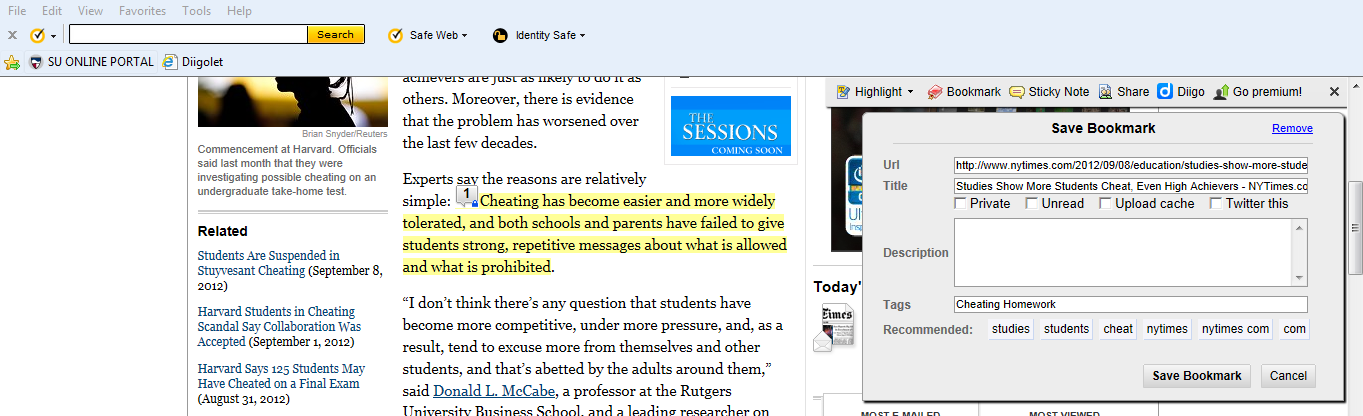
To get started, the video recommended 1) using the browser add-on to highlight and annotate online articles, 2) using the add-on to bookmark those articles and tag them using keywords, and 3) using the personal library to organize bookmarks in lists.

To use the site’s more extensive features, the video recommended 1) checking out what Diigo friends are interested in, what interests are shared in common, 2) messaging Diigo friends and 3) participating in groups.
 
After registering for Diigo, I updated my profile, setting preferences that will allow Diigo to make suggestions for me, I adjusted my settings to provide me with a comfortable level of security, and I began searching for interesting articles to read online. Once I found an interesting article, I clicked on the Diigolet add-on, I clicked on bookmark which allowed me to add a title, description, and tags. Then I highlighted and added comments throughout the article to sections I found particularly important or intriguing. I went into my Diigo library. I was interested to see that not only did the title of the article, its description, and its tags appear, but everything that I highlighted and all of my comments appeared as well.


The ability to see these things, I believe, makes the tool very valuable although, I think that as I add more articles, the page will become difficult to look at and sort through. It seems that the list feature may come in handy to midigate this problem.

To see my public Diigo library click here.

Q&A
What is Web 2.0?
Web 2.0 is different from previous stages of the web as it is based on user generated content as opposed to serving content created for users. Web 2.0 combines social media and publishing techniques in ways that enable users to collaborate in virtual communities with the purpose of sharing information.

What is social bookmarking?
Social bookmarking sites are for Internet users to acquire, archive, tag, and share online resources within an online community.

What are advantages to social bookmarking?
The World Wide Web expands by the second. Somewhere online is the relevant, informational, or interesting resource I’ve been looking for. Once I find it by sifting through all the sites that don’t meet my criteria, instead of keeping it to myself, I can share this resource with others through social bookmarking. The process of online research is then streamlined for others who have the same interests and needs that I do.

What is a browser add-on and why are they useful?
Browser add-ons are tools that appear in one’s Internet browser that provide additional functionalities for online sites and applications such as Amazon’s “Add to Wish List” button. They are allow  popular websites to be used in effective and efficient ways that work for the user.

What browser do you use?
            Internet Explorer.

What is your experience with browser add-ons?
            I have had very little experience with browser add-ons.
 
Did you get your add on to work?
            Yes.
 
What browser add-ons are you currently using?
            Internet Explorer Bookmark, Diigo, Norton Security. 

How I Would Use It
Age restrictions apply to many social media sites and their use is therefore inappropriate in schools. For this assignment, I read an article that suggests this tool may motivate school age students to read and encourage them to participate in discussions about readings. This may be true for high school students but I would be weary of using such technology (parent permission would be required) and it certainly has no place in the elementary classroom. However, if used by staff and faculty within a school system, professional development would be put on a fast track. Online resources for classroom use and recent research in the field could be shared and debates could be raised over important issues through a Diigo group by colleagues.

Standards Reflection
            A teacher using Diigo would be meeting Standard 5 of the ISTE-NETS-T standards, particularly sections a, c, and d. When teachers communicate and share ideas regarding teaching and learning with others through Diigo, especially when networking in a group, they are teaching and learning in a virtual place with multiple communities. As they research articles and read articles found by others, they are thinking critically about information that could influence their practices in the classroom. If teachers in a school or school system participate and collaborate within a Diigo group, they are promoting the modern advancement of their school community and classrooms.

Friday, September 7, 2012

Self Portrait: Picassohead

The internet is not just for publishing works of literature, it’s for displaying art!

Summary
Expressing yourself can be difficult, but not when you have the internet at your fingertips, especially with websites like Picassohead. Picassohead offers a digital canvas and supplies the user with facial features that almost look like they have been copy and pasted from Pablo Picasso’s paintings. The possibilities are endless as you can use color on, rotate, resize, and flip each feature. If you look past the apparent uses of each feature it is possible to create complex facial characteristics and express complex emotions.
 
Before creating my own Picassohead, I looked at the website’s gallery. I was surprised at some of the ways people thought to use the creation tools. I knew that I had to be open minded about my approach if I wanted to create something unique like my fellow artists. Using mostly the eyebrow feature, I created the portrait displayed left.

To view my portrait on the Picassohead website click here.

            While my Picassohead may not look like me, it represents me in two ways 1) I made a curtain with lips to illustrate a stage; I’m a dancer and love to perform and 2) I went for a symmetrical look instead of taking a cubist approach as Pablo Picasso may have; I feel most comfortable when things are orderly.

           This website was fun to use as I didn’t even know exactly what my portrait was going to end up looking like. At the start, I was going for unique and original. I tried to look at the facial features in unique ways and to use them differently. To my surprise, I ended up with the most typical looking female! If I were to create another Picassohead, I’m sure it would wind up looking wildly different.

Learning Objective
            At one point during the creation process, I got frustrated that I could not move features once I placed them on the “canvas.” I would try to move a small object and the boarder of a larger object made it impossible for me to access what I wanted. However, I discovered that by sending the larger feature backward, I could access the smaller one. I had a feeling this would work as I am familiar with using the “Send to Back” and “Send to Front” options available for pictures and clip art in Microsoft Word and PowerPoint.

How I Would Use It
            Ice breakers can help you and your students to feel more comfortable at the start of a new school year and encourage classroom community. Since Picassohead has three step directions and only requires the use of a mouse, it is a simple, low-risk, activity for the computer lab which can allow students and even the teacher to introduce themselves to a new class.

Standards Reflection
            Picassohead.com is a virtual art gallery that can store your very own online creations. Using this tool in the classroom would meet Standard 1 “b” of the ISTE-NETS-T’s standards. Creativity is often expressed when old ideas are synthesized to create something new. By encouraging students to use this tool, students will become inspired by the ideas of a famous artist to express themselves and their ideas in ways never seen before. By stretching students’ imaginations through creativity, they are set on the road towards innovative and inventive thought.